
TypeMotion.Art
Guide · real product workflow

How to Animate Diagrams

Turn a static process, timeline, or hierarchy into an animation that reveals relationships clearly.

Open Animated Diagram Maker
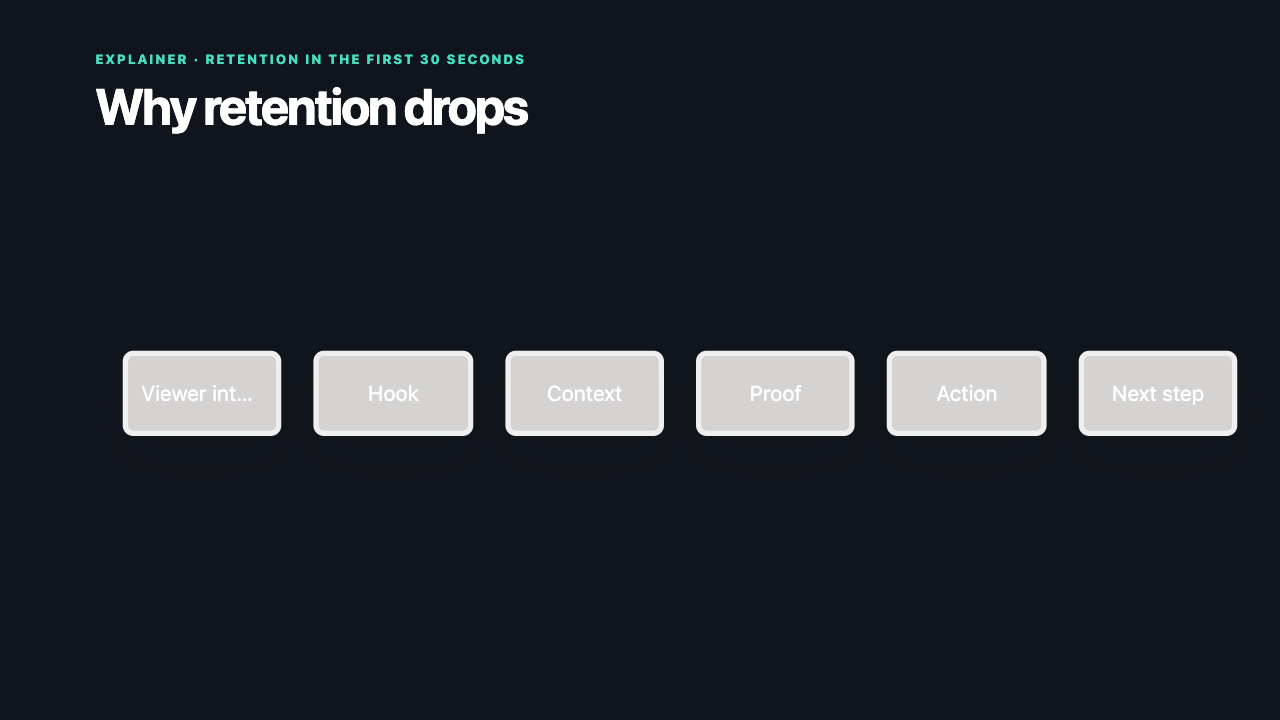
Real MP4 exportA retention explainer flowchart16:9 · 24 FPS · Built in TypeMotion.Art
Open the real editor
01

Select the relationship type

Use a flowchart for decisions, a timeline for sequence, a mind map for idea structure, swimlanes for responsibility, and an org tree for hierarchy.
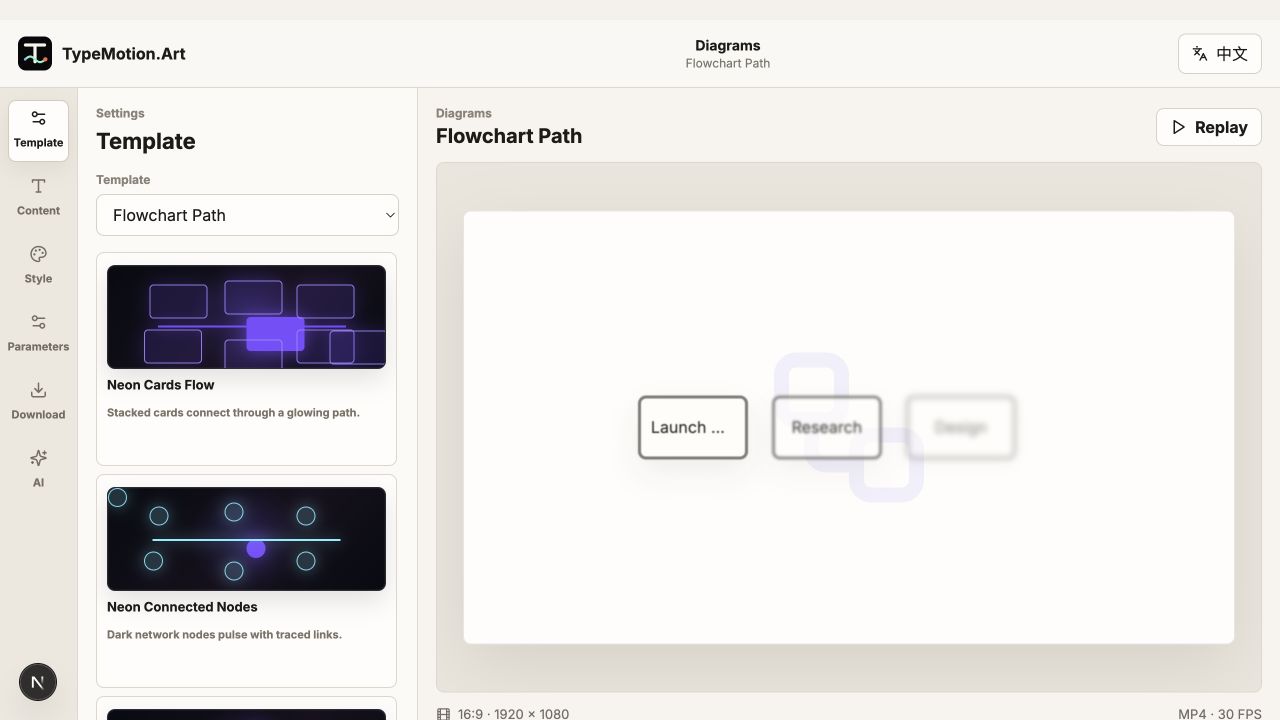
Select the relationship type shown in the TypeMotion.Art Diagrams editor
Actual product UIFlowchart PathActual TypeMotion.Art editor screenshot
02

Reveal one relationship at a time

Animate nodes in the order they should be understood and draw connectors immediately after their source appears. Avoid showing motion in unrelated branches at the same time.

Reveal one relationship at a time shown in the TypeMotion.Art Diagrams editor
Actual product UIMind Map BloomActual TypeMotion.Art editor screenshot
03

End on the complete system

After the sequence, hold the complete diagram. The final frame lets viewers consolidate the relationships and also works as a useful still image.
End on the complete system shown in the TypeMotion.Art Diagrams editor
Actual product UITimeline StepsActual TypeMotion.Art editor screenshot
Try it

Templates used in this guide

Each link opens the working SaaS editor rather than a decorative demo card.

Finished result

A real export built with this workflow

A retention explainer flowchart exported frame
Exported video frameA retention explainer flowchart16:9 · flowchart-path
Apply the workflow

Related use cases